TV Remote Control for Smart TV
iKame Applications - Begamob GlobalTools
4.569.00 Reviews
- Version
- 1.1.3
- Installs
- 500.00K
- Age Rating
- Everyone
Screenshots
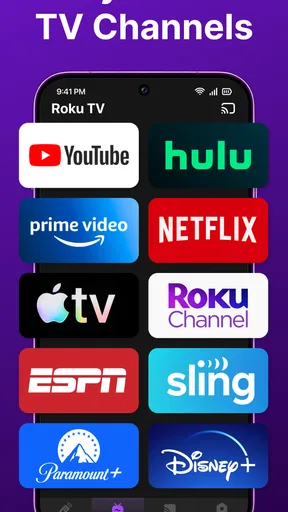
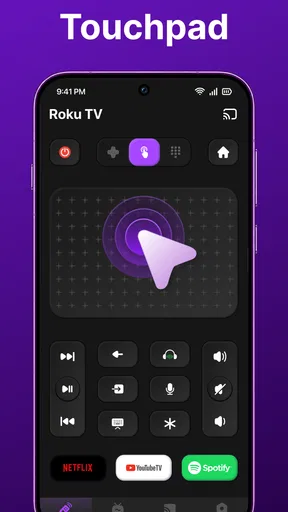
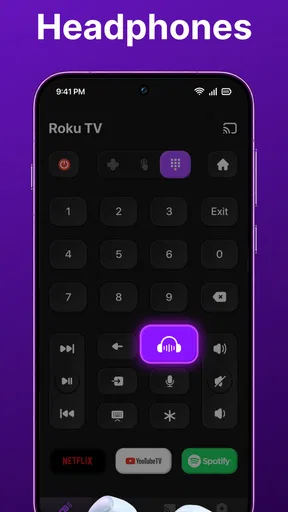
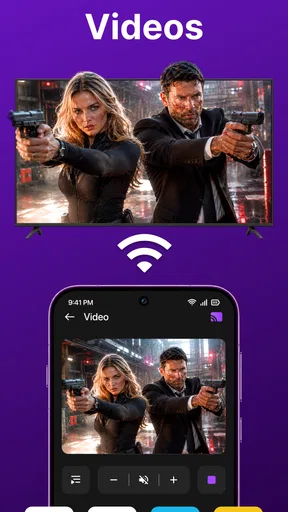
Our Review of TV Remote Control for Smart TV
 Analysis by Appyee
I tried TV Remote Control for Smart TV as a practical replacement for the remote that always seems to disappear at the worst possible moment. It is a free tools app from iKame Applications - Begamob Global, aimed at controlling televisions and other compatible devices from a phone. The basic idea is simple: use the phone for everyday controls such as volume, while also having a touchpad-style control area for supported devices.
That sounds straightforward, but a remote-control app is only useful when the first connection goes smoothly. My main focus was therefore not just whether the buttons looked familiar, but whether a first-time user could install the app, understand what to do next, and reach a useful action without guessing. In that respect, the app has an approachable purpose, although its success depends heavily on the television or device being compatible and ready to communicate.
What to expect before you start
The app sits in the tools category rather than entertainment, and that distinction matters. It is not a streaming service, a media library, or a way to watch television on a phone. Its job is to act as a control surface. You open it when you want to adjust the sound, navigate a compatible television, or use touch-based movement on a device that supports that style of input.
The store summary presents it as a universal remote with volume control and a touchpad for devices. I would treat “universal” as a convenience goal rather than a guarantee that every television will work in exactly the same way. Remote-control apps generally rely on the phone and the target device being able to communicate through a compatible method. If your television does not appear during setup, or if a particular control does not respond, that is a compatibility issue to investigate rather than something the app can automatically solve.
The app is free to install, which makes it easy to test before committing to it as your main remote. It also contains optional purchases ranging from $3.99 to $59.99 per item. That is a wide range, so I would pay attention to the purchase screen and avoid tapping through quickly. The free starting point is useful for deciding whether the connection and controls suit your setup, but I would not assume every useful function is included without checking what the app presents on your device.
It is rated for Everyone, and the current version is 1.1.2. The minimum operating-system requirement is Android 7.0, so owners of older Android phones should check compatibility before spending time on setup. The app has reached over 500 thousand installs and holds a 4.5 average from around 6.1 thousand ratings, which suggests that many people find the general concept useful, while still leaving plenty of room for individual differences between television brands, phone models, and home networks.
One detail I found important is that a phone-based remote changes the physical experience. A normal remote has raised buttons that I can find without looking. A touchscreen does not. The advantage is that the phone is usually nearby and can replace a missing remote; the disadvantage is that I need to look down at the screen more often, especially when changing channels or navigating menus. For quick volume adjustments, that trade-off is minor. For long menu sessions, a physical remote may still feel more natural.
Install with a clear goal in mind
Before opening the app, I recommend deciding what you actually need it to do. If the immediate problem is a muted television and a missing remote, start with volume control. If you want to browse menus or move around a connected device, your first meaningful test should be the touchpad. This prevents a common mistake: trying to judge every control at once before confirming that the basic connection works.
It also helps to keep the television powered on and reasonably close to the phone during the first attempt. I would not begin with the television switched off, stuck on a setup screen, or separated from the phone by an uncertain connection. A simple starting state makes it much easier to tell whether the issue is pairing, device compatibility, or an individual button.
For a first-time user, the most reassuring approach is to think in three stages: find the target device, establish control, then test one action. If the app shows a device-selection step, choose the television you recognize rather than repeatedly pressing controls while the app is still searching. If it presents a touchpad, move a finger gently instead of swiping aggressively. A light movement is easier to interpret and gives you a better sense of the response.
Getting through the first setup
When I begin with a remote app, I expect the first screen to guide me toward a compatible television or device. The important thing is to follow the on-screen sequence rather than assume that opening the app automatically connects it to the nearest screen. The app’s purpose is clear, but the actual path can vary depending on the equipment in the room.
Keep the phone unlocked while you work through this stage. It sounds obvious, but a phone that goes to sleep can make a connection attempt feel as if it failed. I also suggest avoiding several simultaneous attempts from different phones. If more than one person is trying to control the same television, it becomes difficult to know which device received a command and whether the app or the television caused the delay.
The first setup is also the right time to notice whether the app’s controls match your needs. A television may respond to volume changes but behave differently with navigation. Another device may be more comfortable with the touchpad than with individual virtual buttons. I would test the functions you care about most before considering any optional purchase. There is little value in paying for a broader control experience if the core connection is unreliable in your room.
One practical tip is to perform the setup from the same place where you normally watch television. A connection that works while standing close to the screen may feel different from one used from a sofa or another room. This is not about measuring distance; it is about testing the app in the situation that matters. If you mainly want a backup remote for late-night viewing, test it from that seat rather than from directly in front of the television.
The first successful action should be simple
My preferred first test is volume. It is easy to recognize, it gives immediate feedback, and it does not risk changing a complicated setting. Tap volume up once, wait for the television to respond, and then try volume down. If both commands work, you have confirmed more than a button: the app is communicating with the device and the television is accepting the commands.
After that, I would test one navigation movement with the touchpad. Move slowly, watch the on-screen selection, and stop as soon as it shifts. This is where a phone remote can feel different from a traditional controller. The touchpad may be convenient for moving through menus, but it can also be too sensitive if I swipe quickly. Small, deliberate gestures are the better starting habit.
A realistic everyday example is a family movie night. The physical remote has slipped between cushions, the television is already on, and nobody wants to interrupt the film search by turning the room upside down. I can open the app, connect to the television, lower the volume, and use the touchpad to move through the available choices. In that situation, the app is valuable even if I would still prefer a physical remote for extended browsing.
Another useful situation is when the remote’s batteries are empty. The phone does not solve every compatibility problem, but it can provide a temporary way to restore basic control. I especially like the idea of testing the app before an emergency rather than waiting until the television is stuck at an inconvenient volume. A backup tool is most helpful when it has already been connected and understood.
Where new users commonly get confused
The word “remote” can create unrealistic expectations. A phone app may reproduce common controls, but that does not mean every television menu, button, or special function will behave exactly like the original accessory. I would judge it first on the controls that are clearly presented and important to me. If a rare manufacturer-specific command is essential, the original remote or an official device app may be the safer choice.
The touchpad can also be misunderstood. It is not necessarily a full replacement for every directional button. A swipe may move a selection, but the result can depend on how the target device interprets touch input. If the selection jumps too far, shorten the gesture. If nothing happens, pause and check whether the television is still connected before assuming that the touchpad is broken.
Another point of friction is the difference between controlling the television and controlling content inside an app on the television. Basic volume control may work while a particular streaming interface handles navigation in its own way. I would not conclude that the remote has failed simply because one screen reacts differently from another. Test the television’s own menu first, then try the content interface.
Users may also wonder whether the app can control a television that is completely off. I would approach that situation cautiously. Some devices can respond to network-based controls while in standby, while others cannot. The dependable first test is a television that is already on and ready. Once that works, I can explore whether standby control is supported by my particular equipment without treating it as a universal promise.
Connection problems deserve a calm troubleshooting order. First, confirm that the intended television is on. Next, make sure I selected the correct device if more than one appears. Then repeat the simplest command rather than testing a complicated menu. Finally, restart the connection attempt if the app stops responding. Repeatedly tapping buttons is rarely useful because it creates uncertainty about which commands were received.
How it compares with the usual alternatives
The obvious alternative is the physical remote that came with the television. That remote wins for tactile feedback, quick access to familiar buttons, and independence from a phone battery. It is also the better choice for someone who dislikes looking at a screen while controlling the television. I would keep the original remote if it is available and use this app as a convenient backup or secondary controller.
An official television-brand app may be a stronger option when it offers deeper integration with a particular model. A manufacturer’s app can sometimes organize device-specific functions more clearly because it was designed around that ecosystem. On the other hand, a dedicated brand app may be less appealing if I own devices from different manufacturers. The universal approach here is more attractive when I want one general-purpose tool instead of several separate remote apps.
A third alternative is a dedicated universal physical remote. That option can be more comfortable for regular use and does not compete with other phone tasks. Its drawback is the extra object to buy, configure, and keep track of. This app is most convincing when I already have the phone in my hand and want a quick solution without searching for another accessory.
There is also a difference between a remote app and a casting tool. Casting focuses on sending media or a phone screen to a television; this app focuses on control. If my main goal is to play content from the phone, I would look for a casting solution. If my problem is volume, menu movement, or a missing remote, this app is the more relevant type of tool.
Small habits that make the app more useful
I found that the best workflow is to connect before I need the app urgently. Open it once when the television is working normally, identify the correct device, and test volume. That turns a vague emergency option into a known backup. It also reveals compatibility problems while the original remote is still available, which is much less stressful.
I would keep the app’s role narrow at first. Use volume for the first session, then navigation, then any additional control that matters to your household. This staged approach makes it easier to identify the exact point where the experience becomes unreliable. It is a more useful test than trying every button and later wondering which one caused the problem.
For shared spaces, agree on one phone as the primary controller during a viewing session. Multiple people opening remote apps at the same time can create accidental commands and confusion. If the app is being used as a backup, telling other household members which phone is connected is a simple way to avoid competing inputs.
I would also avoid making it the only way to control an important screen. A phone can be misplaced, low on battery, locked, or busy with another task. The app works best as a flexible addition to the room, not as a reason to discard every other control method. That is particularly true for older televisions or unusual devices whose compatibility may be less predictable.
Who should use it, and who should skip it
This app makes sense for someone who regularly loses the remote, wants a quick backup, or prefers having basic television controls on a phone already in hand. It is also a reasonable first experiment for households with compatible smart devices that want touch-based navigation without buying another physical controller. The free installation makes that trial relatively easy.
I would be more cautious if you need guaranteed control of every manufacturer-specific function. People who rely on precise shortcut buttons, tactile controls, or advanced television settings may be happier with the original remote or a dedicated universal model. The same applies if your television is older, unusual, or frequently disconnected from the network used for control.
It is also not the best fit for someone who expects a remote app to replace casting, provide television channels, or manage all smart-home equipment. Its value is focused: control the compatible television or device, including volume and touchpad-style interaction. That focus is helpful when it matches the problem, but limiting when your needs extend beyond remote commands.
My final take after using it as a backup
TV Remote Control for Smart TV is easiest to appreciate when I treat it as a practical backup rather than a perfect replacement for every physical remote. Its strengths are the familiar purpose, the free entry point, volume control, and the added flexibility of a touchpad for supported devices. The first meaningful success should come from a simple volume test, followed by gentle navigation once the connection is stable.
The main trade-off is that the experience depends on compatibility and on how comfortable I am with touchscreen controls. A physical remote remains better for blind operation and long sessions, while an official brand app may be preferable for model-specific features. Optional purchases also deserve careful attention before confirming anything, especially because the listed purchase range is broad.
With those expectations in place, I think this tools app is worth trying if a missing or inconvenient remote is a recurring problem. Install it while your television is available, test the basic control, and keep the first session simple. If volume and one navigation action work reliably from your usual viewing spot, it can become a genuinely handy spare. If those basics fail, I would stop there and choose a device-specific or physical alternative instead.
Verdict
Strengths of TV Remote Control for Smart TV
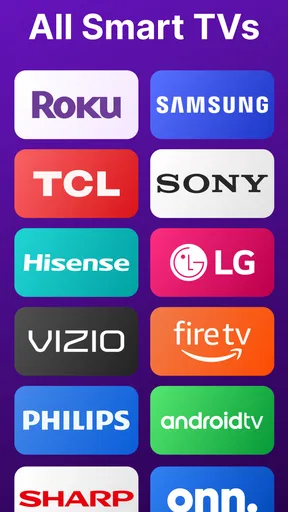
- Works with many popular Smart TV brands.
- Simple interface makes basic controls easy to find.
- Useful replacement when the physical remote is missing.
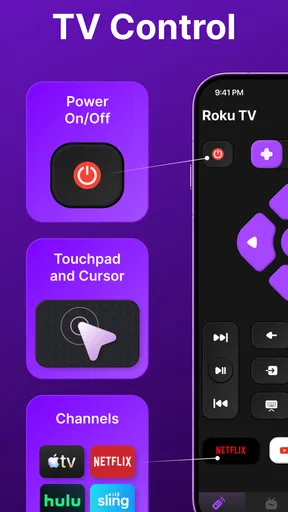
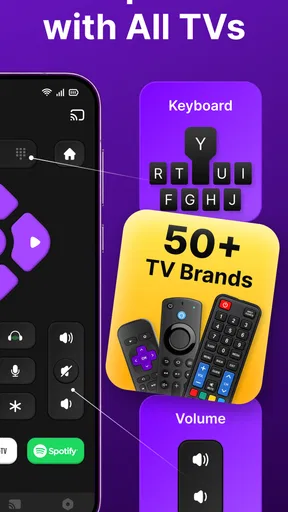
- Quick access to volume, channels, and input controls.
- Usually connects through the same Wi-Fi network without extra hardware.
Limitations of TV Remote Control for Smart TV
- Your phone and TV must usually share the same Wi-Fi network.
- Compatibility may vary between TV models and manufacturers.
- Some features may require in-app purchases or subscriptions.
- Ads can interrupt use, especially in the free version.
- Typing and navigation may feel slower than with a physical remote.
Other Releases by iKame Applications - Begamob Global
View All
Word Document: DOCX, PDF, XLSX
Productivity4.4

AI Cleaner: Clean up Storage
Tools4.4

OneSearch: DeepSearch Finder
Productivity4.2

Authenticator App - 2FA
Tools4.4
Similar Picks in This Category
View All
Google LLC4.0

Gboard - the Google Keyboard
Google LLC4.5

Google Play services
Google LLC4.3

Google Play Store
Google LLC4.9

Files by Google
Google LLC4.5

SHAREit: Transfer, Share Files
Smart Media4U Technology Pte.Ltd.4.3
Frequently Asked Questions
What is TV Remote Control for Smart TV, and how does it work?
TV Remote Control for Smart TV is a mobile application that turns your Android or iOS device into a remote control for compatible televisions. After installing it, you generally select your TV brand or allow the app to detect devices on the same Wi-Fi network. Once connected, you can use on-screen buttons to change channels, adjust volume, navigate menus, switch inputs, and control other basic functions.
Is TV Remote Control for Smart TV compatible with every television?
Compatibility depends on the television model, operating system, and the connection method supported by the app. Most modern smart TVs from popular brands can work when the phone and television share the same Wi-Fi network, but older models or less common brands may not be supported. Before downloading, check the app listing and confirm that your TV model appears among the supported devices.
Does the app require Wi-Fi, Bluetooth, or an infrared sensor?
The connection method varies according to the phone and television. Many smart TV remote applications communicate through Wi-Fi, meaning both devices must be connected to the same network. Some Android phones may also use an infrared blaster to control compatible televisions without Wi-Fi, while most iPhones do not include infrared hardware. Review the app’s requirements before relying on it as your only remote.
What permissions does TV Remote Control for Smart TV request?
A remote control app commonly requests permission to discover devices on the local network, which is necessary for finding and communicating with your smart TV. Depending on the version and platform, it may also request notification, Bluetooth, or local network access. These permissions should be reviewed carefully. The application should not need unrelated access, such as contacts, messages, or personal files, to perform its main function.
Can TV Remote Control for Smart TV completely replace the original remote?
For everyday controls, the app can often replace the physical remote by providing buttons for power, volume, channels, navigation, playback, and input selection. However, the experience depends on your television and connection quality. Certain advanced features, voice commands, keyboard functions, or setup controls may be unavailable. Keeping the original remote is recommended for initial pairing, troubleshooting, and situations where the phone battery or Wi-Fi connection is unavailable.
